
View, Chart and Compare FIT Files
You build on the Garmin Activity API, Polar AccessLink, Wahoo, Suunto or an aggregator, and activities reach you as binary .fit files. When a user's distance or heart rate looks wrong, you can't just open the file to see what the device recorded. Slicelytics decodes FIT in your browser into named, scaled fields: check your parser's output against them, chart the records, or diff two devices or two deliveries of the same activity. The files stay on your computer.
Compare Two Watches on the Same Run
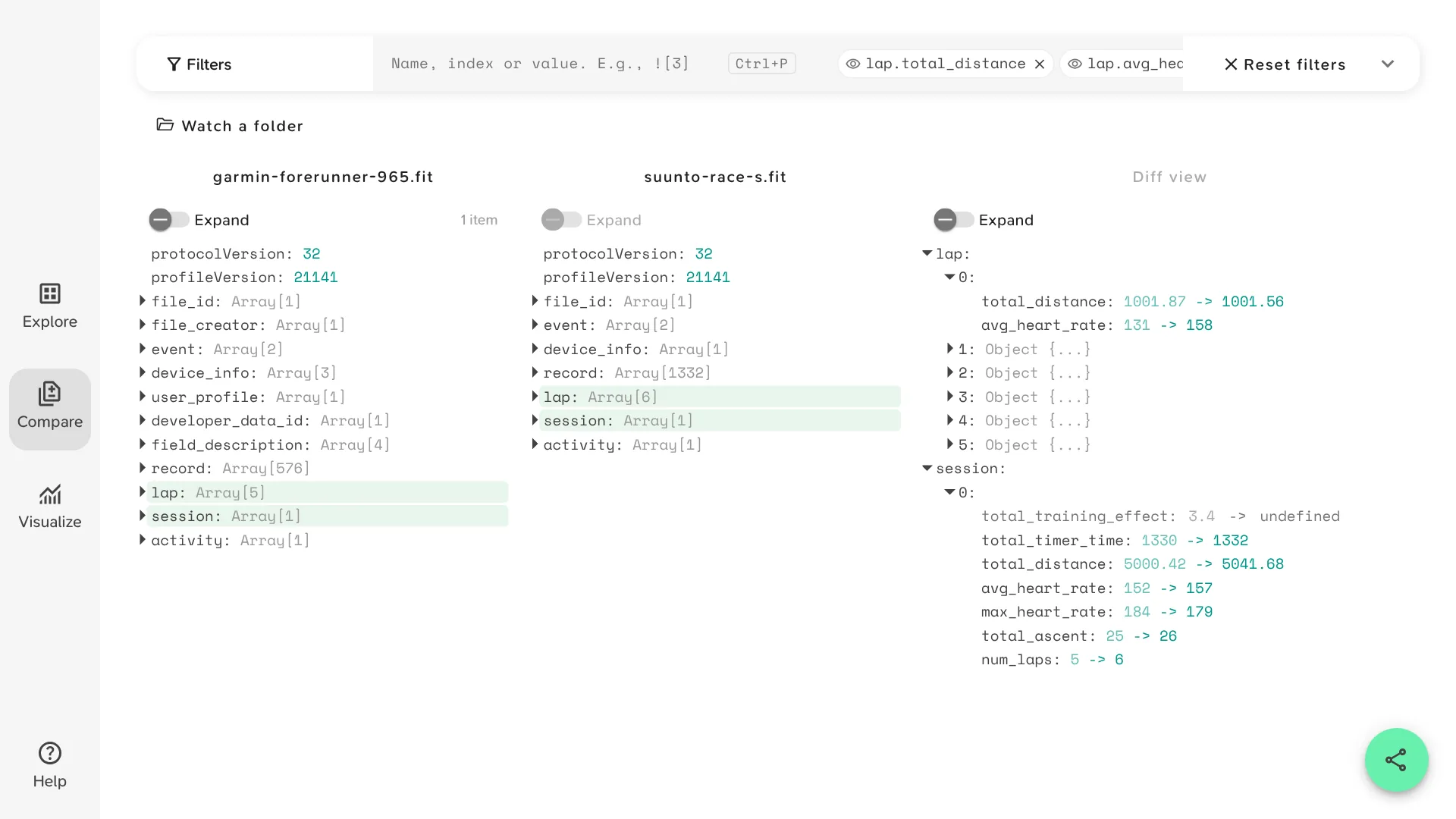
The sample is one 5 km tempo run in a park, recorded at once by two watches: a Garmin Forerunner 965, paired with an HRM-Pro Plus chest strap and a Stryd foot pod, and a Suunto Race S, measuring heart rate at the wrist. It opens in Compare with a view that keeps each watch's summary of the run and of each lap. In the Diff view:
session.total_distancewent from 5000.42 m to 5041.68 m. The Garmin takes distance from the Stryd pod, the Suunto from GPS.session.num_lapswent from 5 to 6: with 41 m more, the Suunto started a sixth lap after its fifth kilometre, 9 seconds long.lap.0.avg_heart_ratewent from 131 to 158. For the first four minutes, the wrist sensor read the runner's step rate, about 162 steps a minute, as their heart rate. Runners call this cadence lock.session.max_heart_ratewent from 184 to 179: the wrist sensor smooths the readings, and lagged behind the sprint at the end.session.total_training_effectis only in the Garmin's file: each brand writes some fields of its own.
The sample opens without an account. Both files are synthetic, written to the FIT profile. The sample's link carries both files as they are, compressed.
Compare matches list items by their position. Watches record at different rates, e.g. this Garmin uses smart recording and stored 576 points, while the Suunto stored one a second, 1332, so their record lists don't line up, and the Diff view shows nearly all of them as changed. Compare the session and lap summaries instead, as the sample does, and chart the records.
To see what else differs between two files, the device, firmware and sensors that made each one and the fields it records, see Compare Garmin FIT Files.
What's Inside a FIT File
FIT, the Flexible and Interoperable Data Transfer format, is the binary format Garmin published for activity files. Suunto, Polar, Wahoo, COROS, Hammerhead, Zwift and most other sports devices and apps write it too. A file is a sequence of messages; Slicelytics groups them into one list per message type:
| Message | What it holds |
|---|---|
file_id | The kind of file, e.g. activity, its maker, product and serial number |
device_info | The watch and every sensor paired with it: chest strap, foot pod, power meter, with their software versions and battery status |
record | The samples taken during the activity: time, position, distance, speed, altitude, heart rate, cadence, power, temperature |
lap | Totals and averages of each lap, and what ended it, e.g. auto-lap by distance |
session | The device's own summary of the activity: sport, distance, time, heart rate, ascent, calories, training effect |
event | Timer starts, stops and pauses, and alerts |
user_profile | The wearer's age, height, weight, and resting and maximum heart rate |
field_description | The names and units of developer fields, which apps and sensors add |
Fields are named and scaled as the FIT profile defines them, so you read values, not raw integers. A record from the Garmin sample, 12 minutes into the run:
{
  "timestamp": "2026-10-17T07:42:00.000Z",
  "position_lat": 51.50692105293274,
  "position_long": -0.15771104022860527,
  "distance": 2582.7,
  "enhanced_speed": 3.613,
  "enhanced_altitude": 29.399999999999977,
  "heart_rate": 155,
  "cadence": 82,
  "temperature": 23,
  "Power": 250,
  "Form Power": 63,
  "Air Power": 3,
  "Leg Spring Stiffness": 10.680000305175781
}
A few things to know when you read one:
- Units are SI: distance and altitude in metres, speed in metres per second (3.613 m/s is a pace of 4:37 per km), temperature in °C.
- Positions are in degrees. The file stores them in semicircles, which Slicelytics converts for you.
- Times are UTC, as ISO dates.
activity.local_timestamptells you the wearer's time zone: here an hour ahead. - Running cadence is per foot: 82 is 164 steps a minute, which is what Garmin Connect and Strava show.
enhanced_fields carry speed and altitude with more range than the olderspeedandaltitude, which some devices also write.- Fields that weren't recorded are left out, rather than shown as the placeholder values the format stores, e.g. 255 for a missing heart rate.
Chart Heart Rate, Pace and Power
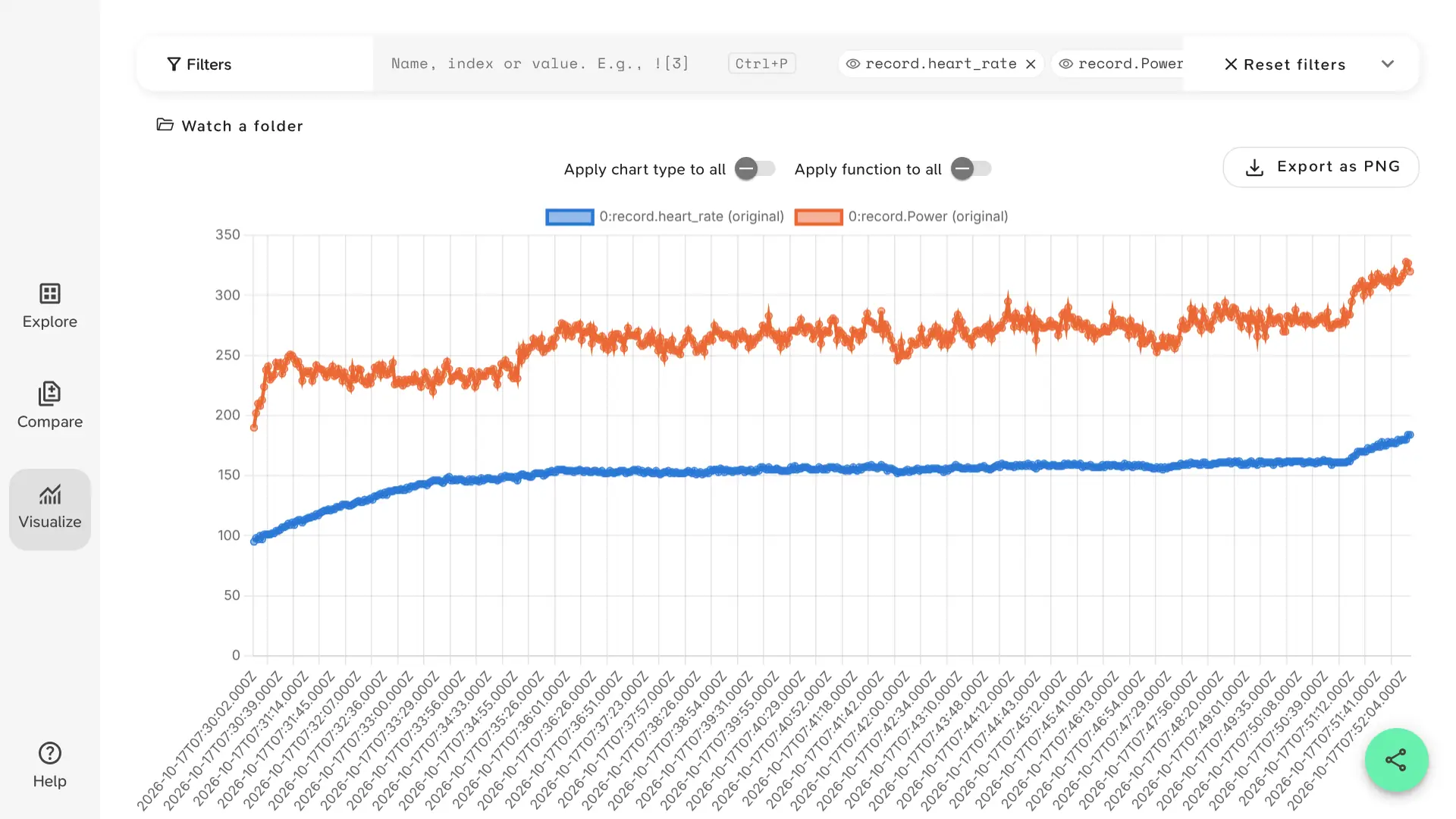
In Visualize, pick the fields to plot under Filters, e.g. record.heart_rate, and choose record.timestamp as the x-axis. Open the Garmin sample's chart: heart rate from the chest strap and power from the Stryd pod, over the run. It opens with this view:
{
  "v": 1,
  "view": "visualize",
  "props": [
    "record.heart_rate",
    "record.Power"
  ],
  "x": "record.timestamp",
  "chart": "line"
}- Laps: plot
lap.avg_heart_rateorlap.enhanced_avg_speedas a bar chart, one bar per lap, to see if you held your pace. - Statistics: pick a function such as mean, median, max or standard deviation for a field, e.g. how steady your power was.
- Elevation: plot
record.enhanced_altitudeoverrecord.distancefor the profile of a route. - Export: save the chart as a PNG for a training log or a coach.
Find Developer Fields: Stryd, Connect IQ and More
Sensors and Connect IQ apps add their own fields to a FIT file, called developer fields: the Stryd pod's power and leg spring stiffness, a core body temperature sensor's readings, or a data field you wrote yourself. Garmin Connect shows some of them; many other sites and apps, and many FIT libraries, ignore them, so it's easy to think they weren't recorded.
Slicelytics shows developer fields by their own names, next to the standard ones: in the sample, record.Power, record.Form Power, record.Air Power and record.Leg Spring Stiffness. Open field_description to list every developer field in a file with its units, and developer_data_id for the app that wrote it. If a field is there, the file is fine, and it's the site you uploaded it to that doesn't read it.
For how a file declares developer fields, and how to read them in your own code, see FIT Developer Fields.
Why Garmin Connect and Strava Show Different Numbers
The same file often shows a different distance, elevation gain or average heart rate in Garmin Connect, Strava, TrainingPeaks and intervals.icu. Many platforms recalculate those totals from the records, or correct elevation with their own map data, rather than use the device's own. Polar's support pages say as much: some services use the data as it is, others recalculate or filter it.
The session message holds what the device itself calculated. Open the file, read session.total_distance, session.total_ascent and session.avg_heart_rate, and compare them with what the platform shows. A different number tells you the platform recalculated, not that the watch got it wrong.
Edits you make in Garmin Connect, such as a corrected distance or a renamed activity, don't go into the file that Export Original downloads: it's the file as the watch recorded it.
See What a FIT File Gives Away Before You Share It
A FIT file holds more than a route. user_profile has the wearer's age, height, weight and heart rate settings, device_info the serial number of every device, and the first record is where the activity started, often your front door. Strava's privacy zones hide the start on your profile, but not in the file itself.
Some online FIT viewers upload the file to a server to read it. Slicelytics reads it in your browser and uploads nothing, so you can check what's in a file before you send it to a coach, post it in a forum or attach it to a bug report. If you share a view with the Share button, the data travels in the part of the link after #, which browsers never send to a server.
Where to Get the FIT File
| From | How |
|---|---|
| Garmin | In Garmin Connect on the web, open the activity, click the gear icon, then Export Original. It downloads a .zip: unzip it first. Or connect the watch by USB and copy the file from its GARMIN/Activity folder. |
| Suunto | In the Suunto app, open the workout, tap the three dots in the top right corner and export it as FIT. |
| Polar | In Polar Flow on the web, open the session from your Diary, then Export and choose FIT. |
| COROS | Export the activity as FIT from the COROS app or Training Hub. |
| Zwift | Zwift saves every activity in Documents/Zwift/Activities, on Windows and macOS. |
| Strava | A bulk export of your account has every activity's original file in its activities folder, often as .fit.gz. Slicelytics opens those as they are. |
Open a .fit file, plain or compressed as .gz or .zst, in Explore, Compare or Visualize. Slicelytics tells a FIT file by its content, so a download with a vague name opens too.
Check Your FIT Pipeline
If you build on the Garmin Activity API, Polar AccessLink, the Wahoo Cloud API, Suunto's API or an aggregator, you receive FIT files: Garmin's Activity API offers activity files as FIT, Polar AccessLink serves them at /v3/exercises/{exerciseId}/fit, and Wahoo links to one in a workout summary's file.url. Before you trust what your parser makes of them, open the same file in Slicelytics and check its output against the decoded fields:
- Positions: FIT stores latitude and longitude in semicircles. Multiply by 180 / 231 for degrees.
- Timestamps: seconds since 1989-12-31T00:00:00Z, not the Unix epoch, and some records store only the last few bits of the time.
- Scale and offset: distance is stored in centimetres, speed in millimetres per second, and altitude in fifths of a metre, offset by 500 m.
- Developer fields can only be read with the
field_descriptionmessages that come before them in the file. - Missing values are stored as the largest value of the field's type, e.g. 255, and must be dropped, not averaged.
To see what changed between two deliveries of the same activity, e.g. the file your webhook received and one you downloaded later, open both in Compare. To check a whole pipeline, save your parser's output as JSON and explore it next to the FIT file.
Let Your Agent Open FIT Files
If an AI coding agent such as Claude Code downloads activities for you, from an API or your watch, ask it to "compare garmin.fit and suunto.fit in Slicelytics". With the Slicelytics skill, the agent builds a link that carries both FIT files, as they are, and opens Compare with them:
python3 scripts/slicelytics_link.py garmin.fit --compare suunto.fit --open The script reads .fit and .fit.gz files. Ask the agent to "chart heart rate and power over the run", and it opens the file with a view like the one above.
For a season of activities, or files your pipeline writes as they arrive, use a watched folder instead: in Chrome or Edge, click Watch a folder and pick a folder, and Slicelytics lists each new FIT file the agent saves into it within seconds. Next to tempo-run.fit, the agent can write tempo-run.view.json with the chart to open. See AI agents for both routes.
Common Questions
Does the file leave my computer?
No. Slicelytics decodes FIT files in your browser and uploads nothing. If you share a view, the data travels in the part of the link after #, which browsers never send to a server, so treat the link like the file: anyone who has it can open it.
Which devices and apps work?
Any that write FIT activity files: Garmin watches and Edge bike computers, Suunto, Polar, Wahoo, COROS, Hammerhead and Bryton, and apps such as Zwift. A file Slicelytics can't open may be incomplete, e.g. from a watch that ran out of battery before it saved the activity.
Can I open GPX or TCX files?
No, Slicelytics reads FIT, JSON, NDJSON, CSV, TSV and TOON. Most platforms can export FIT, and it carries more than GPX: laps, sensors, the device's summary and developer fields.
Can I compare FIT files from different brands?
Yes, as in the sample. The standard messages and fields are the same for every brand, so session and lap line up field by field. Each also writes a few fields of its own, which the Diff view lists as missing on the other side.
What about data from APIs that return JSON?
Sleep, readiness and daily summaries from Oura, Whoop, Garmin's Health API or an aggregator come as JSON, which Slicelytics opens too. See Compare wearable API responses.